> ## Documentation Index
> Fetch the complete documentation index at: https://docs.ticketnation.ph/llms.txt
> Use this file to discover all available pages before exploring further.
# Sales & Orders
> Track every ticket purchase, manage attendees, scan tickets at the door, and handle refunds — all from your organizer dashboard.
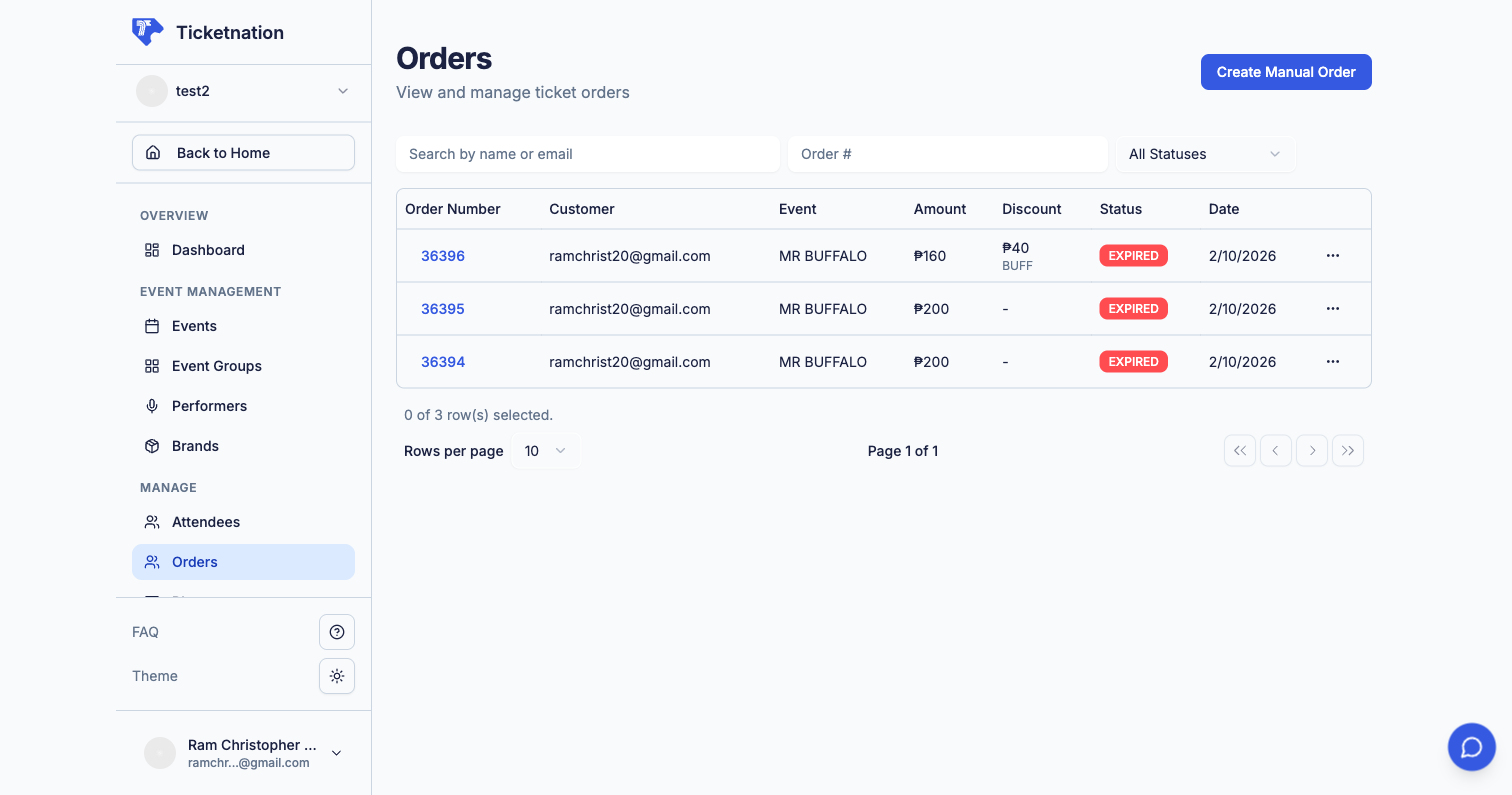 Once your event is live, these tools help you track every sale and manage the logistics of getting people through the door.
***
## View Orders
Once your event is live, these tools help you track every sale and manage the logistics of getting people through the door.
***
## View Orders
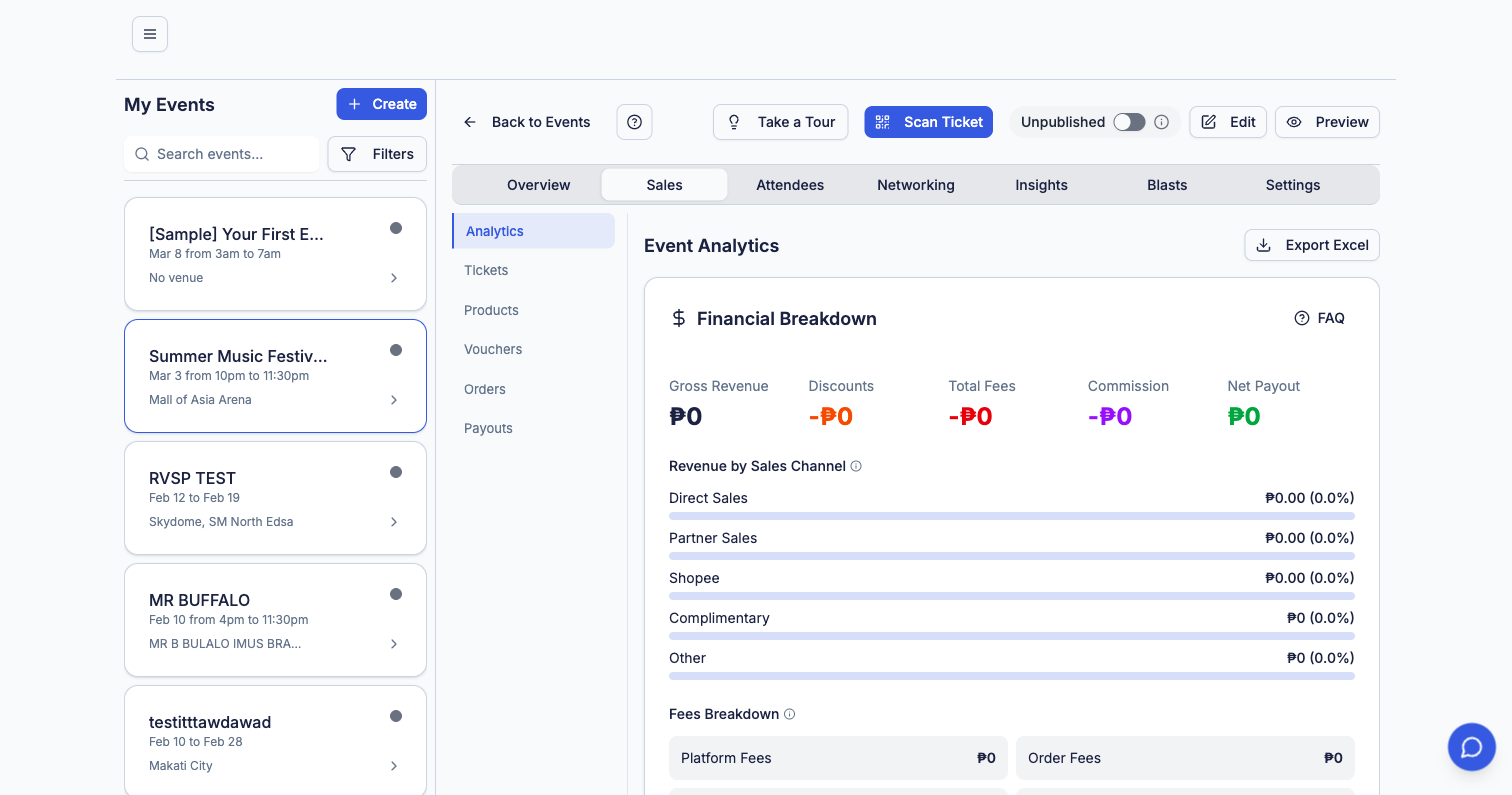 Your central hub for all ticket purchases. The orders page gives you:
Every ticket purchase in a searchable, sortable table with buyer name, order date, ticket type, amount, and payment status.
Filter orders by date range, payment status (paid, pending, refunded), ticket type, or search by buyer name or email.
Click any order to see the full breakdown — buyer info, tickets purchased, payment method, fees, and transaction history.
Export your orders to CSV or Excel for accounting, reporting, or importing into other tools.
### Order Statuses
| Status | Description |
| ------------- | -------------------------------------------------------------------------- |
| **Paid** | Payment received and confirmed. Tickets delivered to the buyer. |
| **Pending** | Payment initiated but not yet confirmed (e.g., bank transfer in progress). |
| **Cancelled** | Order was cancelled by the buyer or organizer. |
| **Refunded** | Full or partial refund has been issued. |
| **Expired** | Payment window expired before the buyer completed checkout. |
***
## Create Orders Manually
Selling tickets at a box office, over the phone, or at a pop-up? Create an order on behalf of the buyer directly from your dashboard.
Choose the event and pick the ticket type(s) and quantity.
Fill in the buyer's name, email, and phone number.
Select the payment method (cash, bank transfer, card, etc.) and confirm the order.
Manually created orders appear in your orders list just like online purchases. The buyer receives a confirmation email with their ticket(s).
***
## Order Approvals
For exclusive or invite-only events, enable **order approval** so you can review and approve each purchase before it's confirmed.
**How it works:**
* Buyer places an order and sees a "Pending Approval" status
* You receive a notification with the order details
* **Approve** to confirm the sale and deliver tickets, or **Reject** to cancel
* Rejected orders are automatically refunded
Great for VIP events, private gatherings, or events where you want to vet attendees before confirming their tickets.
***
## Cancellations & Refunds
Cancel an order and issue a full or partial refund. The money goes back to the buyer's original payment method.
| Action | What Happens |
| ----------------------- | --------------------------------------------------------------------------------------------------- |
| **Full Cancellation** | Entire order is cancelled and fully refunded. Tickets are voided. |
| **Partial Refund** | Refund a specific amount while keeping the order active. Useful for downgrades or disputes. |
| **Organizer-Initiated** | You cancel the order from your dashboard. Buyer is notified automatically. |
| **Buyer-Requested** | Buyer requests cancellation through their account. You approve or deny based on your refund policy. |
Refund processing times depend on the payment method. Card refunds typically take 5-10 business days to appear on the buyer's statement.
***
## Attendee List
Your central hub for all ticket purchases. The orders page gives you:
Every ticket purchase in a searchable, sortable table with buyer name, order date, ticket type, amount, and payment status.
Filter orders by date range, payment status (paid, pending, refunded), ticket type, or search by buyer name or email.
Click any order to see the full breakdown — buyer info, tickets purchased, payment method, fees, and transaction history.
Export your orders to CSV or Excel for accounting, reporting, or importing into other tools.
### Order Statuses
| Status | Description |
| ------------- | -------------------------------------------------------------------------- |
| **Paid** | Payment received and confirmed. Tickets delivered to the buyer. |
| **Pending** | Payment initiated but not yet confirmed (e.g., bank transfer in progress). |
| **Cancelled** | Order was cancelled by the buyer or organizer. |
| **Refunded** | Full or partial refund has been issued. |
| **Expired** | Payment window expired before the buyer completed checkout. |
***
## Create Orders Manually
Selling tickets at a box office, over the phone, or at a pop-up? Create an order on behalf of the buyer directly from your dashboard.
Choose the event and pick the ticket type(s) and quantity.
Fill in the buyer's name, email, and phone number.
Select the payment method (cash, bank transfer, card, etc.) and confirm the order.
Manually created orders appear in your orders list just like online purchases. The buyer receives a confirmation email with their ticket(s).
***
## Order Approvals
For exclusive or invite-only events, enable **order approval** so you can review and approve each purchase before it's confirmed.
**How it works:**
* Buyer places an order and sees a "Pending Approval" status
* You receive a notification with the order details
* **Approve** to confirm the sale and deliver tickets, or **Reject** to cancel
* Rejected orders are automatically refunded
Great for VIP events, private gatherings, or events where you want to vet attendees before confirming their tickets.
***
## Cancellations & Refunds
Cancel an order and issue a full or partial refund. The money goes back to the buyer's original payment method.
| Action | What Happens |
| ----------------------- | --------------------------------------------------------------------------------------------------- |
| **Full Cancellation** | Entire order is cancelled and fully refunded. Tickets are voided. |
| **Partial Refund** | Refund a specific amount while keeping the order active. Useful for downgrades or disputes. |
| **Organizer-Initiated** | You cancel the order from your dashboard. Buyer is notified automatically. |
| **Buyer-Requested** | Buyer requests cancellation through their account. You approve or deny based on your refund policy. |
Refund processing times depend on the payment method. Card refunds typically take 5-10 business days to appear on the buyer's statement.
***
## Attendee List
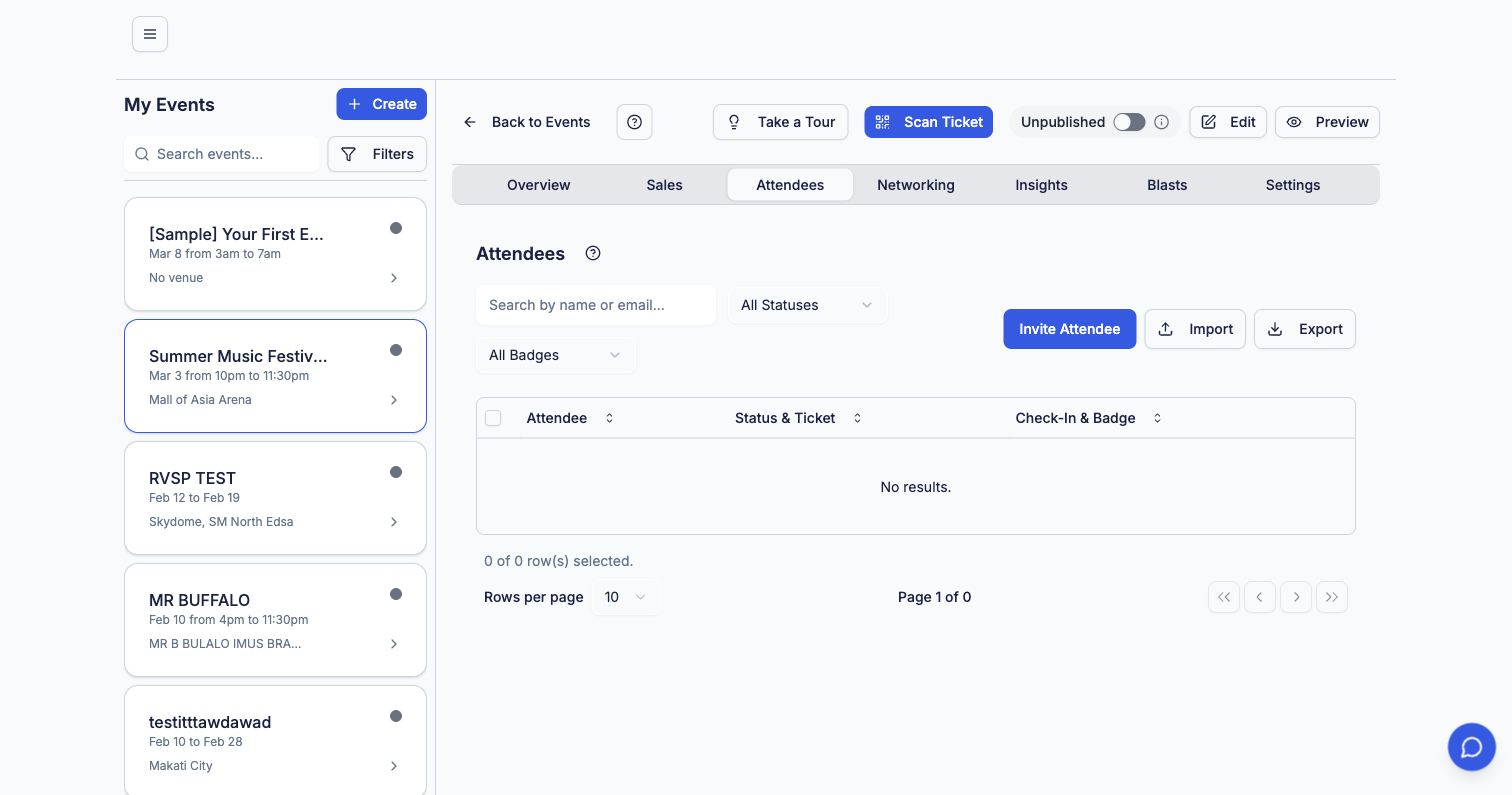 A full list of everyone attending your event. The attendee list includes:
* **Attendee name and contact info** — email, phone number
* **Ticket type** — which tier they purchased
* **Check-in status** — checked in, not yet arrived, or no-show
* **Badge assignments** — VIP, staff, speaker, or custom badges
* **Search and filter** — find specific attendees quickly
* **Bulk actions** — send emails, export list, or update statuses
### Import & Invite Attendees
* **Import** attendees from a CSV file for events with pre-registered guests
* **Invite** specific people by email directly from the attendee list
### Export Options
Export your attendee list to CSV or Excel with customizable fields. Useful for:
* Door check-in sheets (offline backup)
* Post-event follow-up campaigns
* Compliance and reporting
***
## QR Code Scanner
A built-in ticket scanner that works on any phone camera — no special hardware needed.
Staff scan the QR code on an attendee's ticket. The system validates it instantly and shows the ticket details.
Already scanned? The system flags it immediately. Prevents fake or duplicate tickets from getting through.
Track check-in progress in real time from your dashboard — see how many attendees have arrived vs. total tickets sold.
Multiple staff members can scan simultaneously from their own phones. All check-ins sync in real time.
You can also use the Ticketnation mobile app (iOS & Android) for a dedicated scanning experience with offline support.
***
## Ticket Transfers
When a buyer transfers their ticket to someone else, you see the full trail:
* **Who sent it** — original buyer details
* **Who received it** — new attendee details
* **When** — timestamp of the transfer
* **Transfer status** — pending, accepted, or expired
This ensures you always know who's actually attending, even if the original buyer can't make it.
***
## Waitlist Management
When your event sells out, the waitlist captures demand automatically.
**What you can do:**
* See how many people are waiting for tickets
* View waitlist sign-ups with contact details and preferred ticket type
* **Release tickets** — when cancellations or added inventory free up spots, offer tickets to waitlisted fans in order
* **Send notifications** — automatically notify waitlisted attendees when tickets become available
Waitlist data is valuable even if you don't release more tickets — it shows unmet demand and helps you plan future events.
A full list of everyone attending your event. The attendee list includes:
* **Attendee name and contact info** — email, phone number
* **Ticket type** — which tier they purchased
* **Check-in status** — checked in, not yet arrived, or no-show
* **Badge assignments** — VIP, staff, speaker, or custom badges
* **Search and filter** — find specific attendees quickly
* **Bulk actions** — send emails, export list, or update statuses
### Import & Invite Attendees
* **Import** attendees from a CSV file for events with pre-registered guests
* **Invite** specific people by email directly from the attendee list
### Export Options
Export your attendee list to CSV or Excel with customizable fields. Useful for:
* Door check-in sheets (offline backup)
* Post-event follow-up campaigns
* Compliance and reporting
***
## QR Code Scanner
A built-in ticket scanner that works on any phone camera — no special hardware needed.
Staff scan the QR code on an attendee's ticket. The system validates it instantly and shows the ticket details.
Already scanned? The system flags it immediately. Prevents fake or duplicate tickets from getting through.
Track check-in progress in real time from your dashboard — see how many attendees have arrived vs. total tickets sold.
Multiple staff members can scan simultaneously from their own phones. All check-ins sync in real time.
You can also use the Ticketnation mobile app (iOS & Android) for a dedicated scanning experience with offline support.
***
## Ticket Transfers
When a buyer transfers their ticket to someone else, you see the full trail:
* **Who sent it** — original buyer details
* **Who received it** — new attendee details
* **When** — timestamp of the transfer
* **Transfer status** — pending, accepted, or expired
This ensures you always know who's actually attending, even if the original buyer can't make it.
***
## Waitlist Management
When your event sells out, the waitlist captures demand automatically.
**What you can do:**
* See how many people are waiting for tickets
* View waitlist sign-ups with contact details and preferred ticket type
* **Release tickets** — when cancellations or added inventory free up spots, offer tickets to waitlisted fans in order
* **Send notifications** — automatically notify waitlisted attendees when tickets become available
Waitlist data is valuable even if you don't release more tickets — it shows unmet demand and helps you plan future events.