> ## Documentation Index
> Fetch the complete documentation index at: https://docs.ticketnation.ph/llms.txt
> Use this file to discover all available pages before exploring further.
# Organizing Events
> Apply as an organizer, create events, manage ticket sales, and configure every detail from one powerful dashboard.
 Ready to sell tickets? Here's how you go from idea to live event on Ticketnation.
***
## Apply as Organizer
Ready to sell tickets? Here's how you go from idea to live event on Ticketnation.
***
## Apply as Organizer
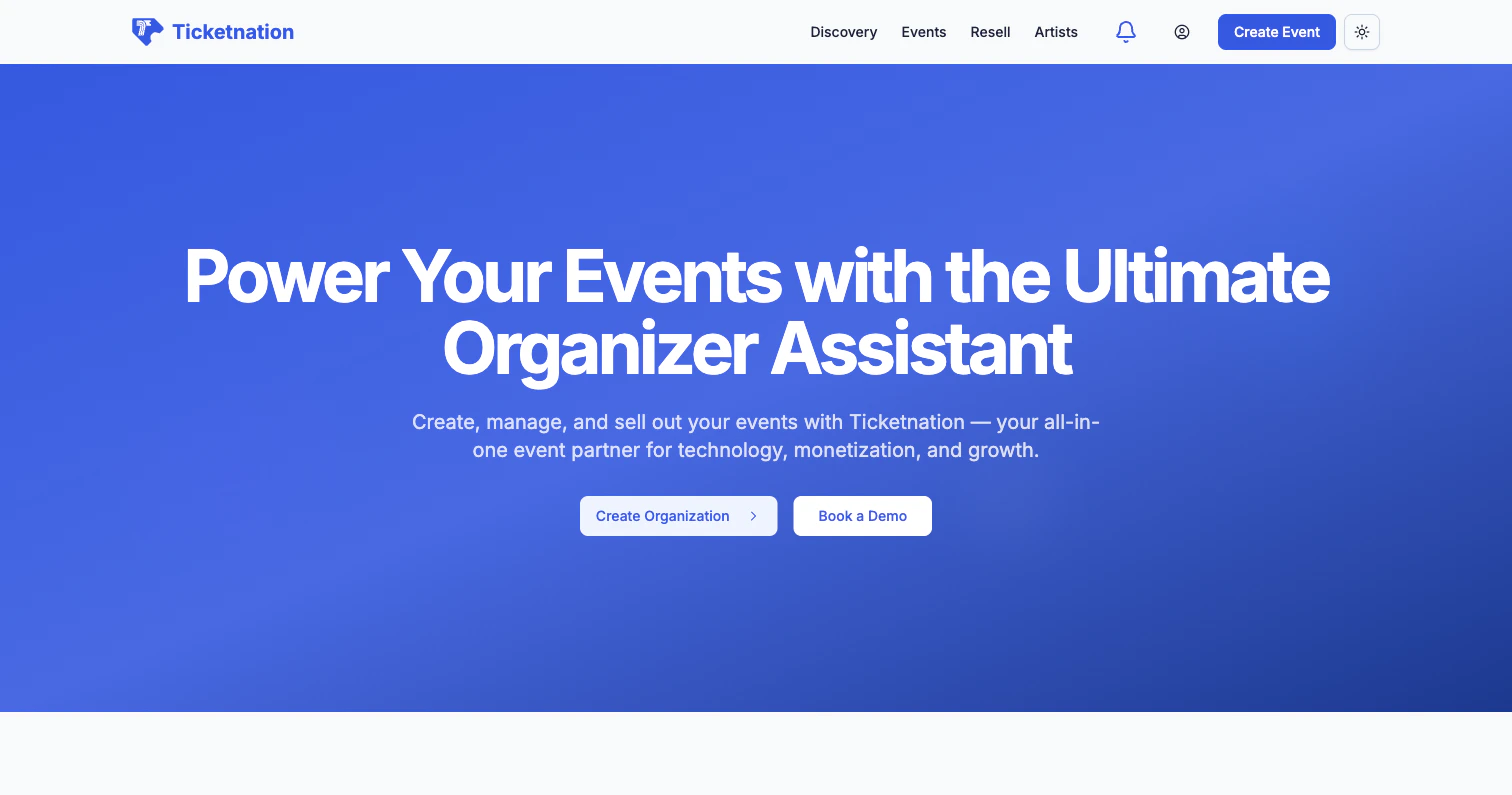 Visit the [Organizer page](https://ticketnation.ph/organizer) to get started. You'll find everything you need to know about the platform — features, pricing plans, testimonials, and FAQs.
When you're ready, click **Create Organization** to get started. Just enter your organization name, agree to the terms, and you're in — it takes less than a minute.
Visit the [Organizer page](https://ticketnation.ph/organizer) to get started. You'll find everything you need to know about the platform — features, pricing plans, testimonials, and FAQs.
When you're ready, click **Create Organization** to get started. Just enter your organization name, agree to the terms, and you're in — it takes less than a minute.
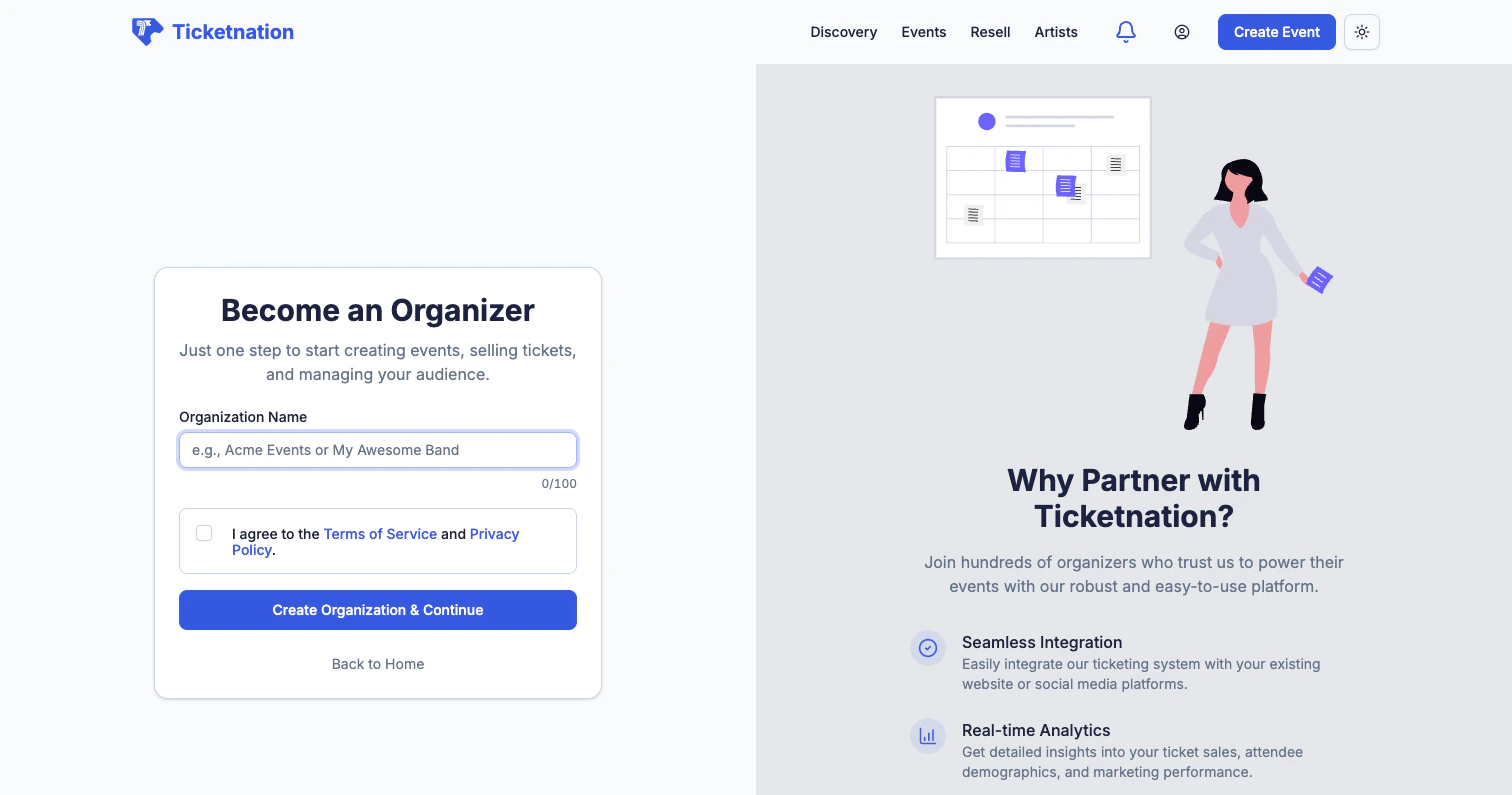 Free events can be created immediately — paid event capabilities are unlocked after KYC verification.
***
## Create Organization
Once approved, set up your organization profile:
* **Organization name** and slug (your custom URL)
* **Logo and banner** for branding
* **Description** — tell attendees who you are
* **Payment configuration** — connect your bank account for payouts
* **Team members** — invite collaborators with role-based permissions
You only need to do this once. After setup, you're taken straight to your dashboard.
***
## Organizer Dashboard
Free events can be created immediately — paid event capabilities are unlocked after KYC verification.
***
## Create Organization
Once approved, set up your organization profile:
* **Organization name** and slug (your custom URL)
* **Logo and banner** for branding
* **Description** — tell attendees who you are
* **Payment configuration** — connect your bank account for payouts
* **Team members** — invite collaborators with role-based permissions
You only need to do this once. After setup, you're taken straight to your dashboard.
***
## Organizer Dashboard
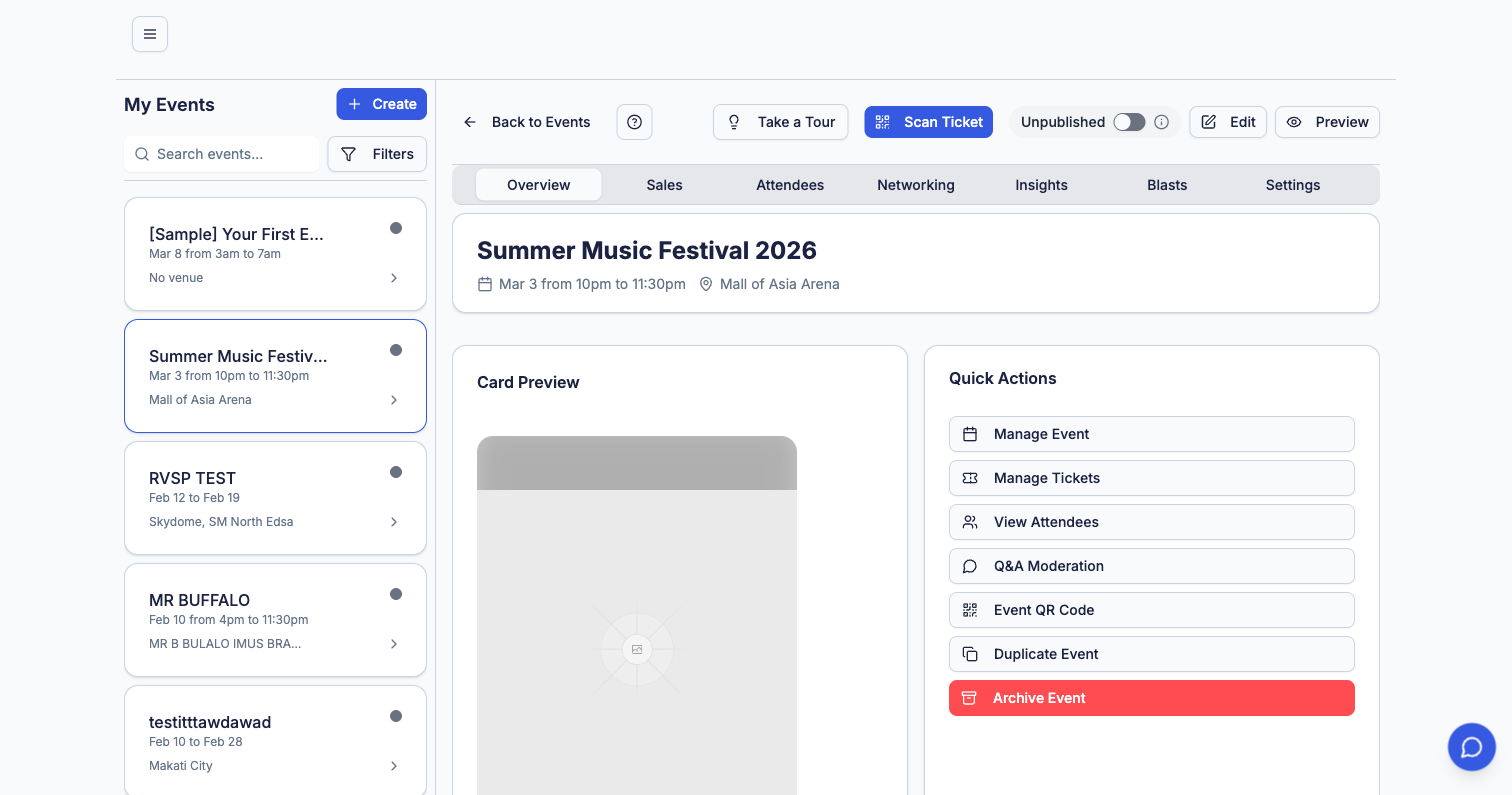 Your home base for everything. The dashboard gives you an at-a-glance view of:
Total ticket sales, revenue, and trends across all your events.
A quick view of your next events with countdowns and status.
Latest ticket purchases with buyer details and payment status.
One-click buttons for common tasks — create event, view reports, manage attendees.
***
## Create an Event
Your home base for everything. The dashboard gives you an at-a-glance view of:
Total ticket sales, revenue, and trends across all your events.
A quick view of your next events with countdowns and status.
Latest ticket purchases with buyer details and payment status.
One-click buttons for common tasks — create event, view reports, manage attendees.
***
## Create an Event
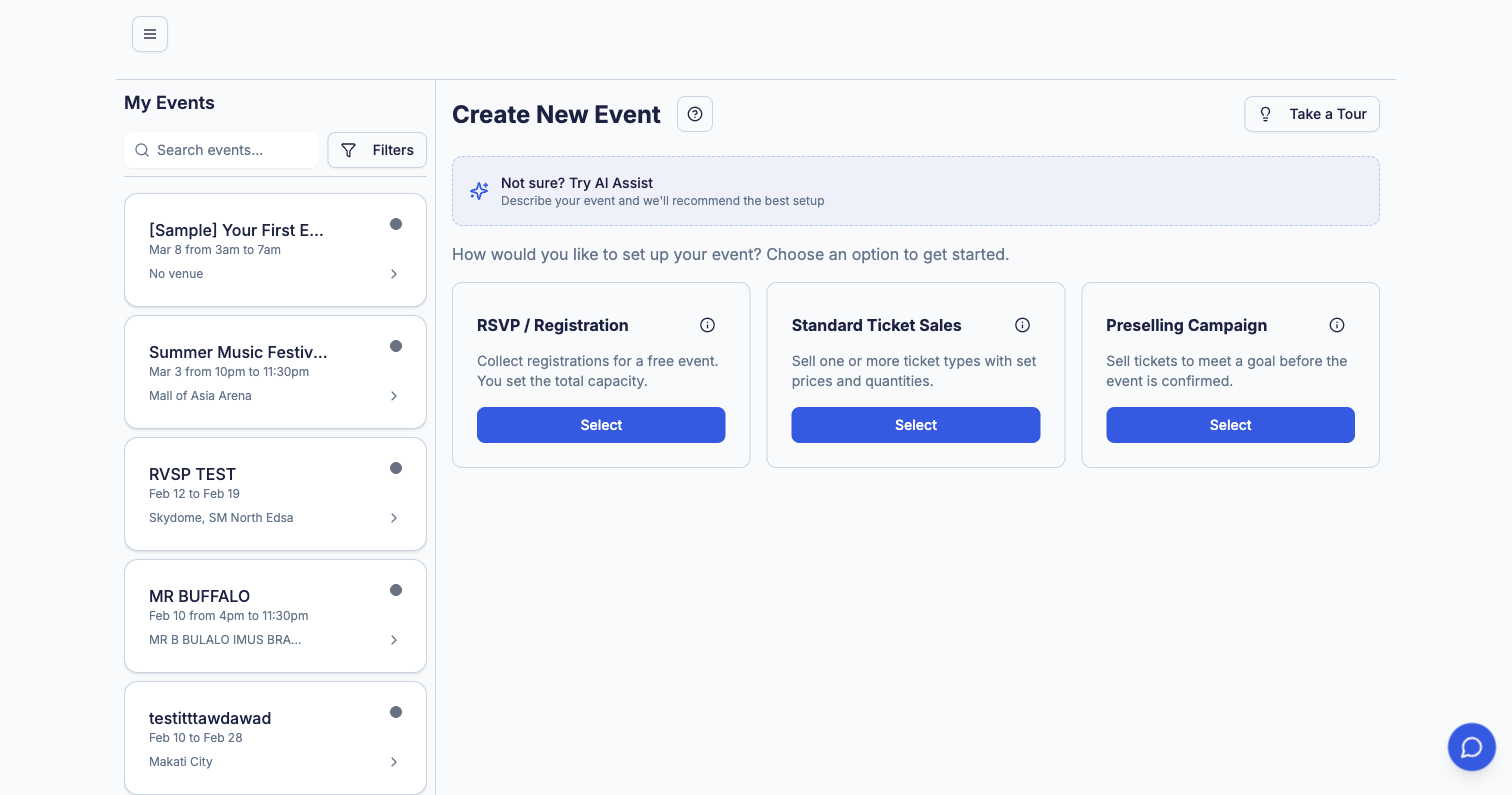 Ticketnation supports multiple event types to fit any scenario:
| Event Type | Description |
| ---------------- | --------------------------------------------------------------------------------------- |
| **Standard** | Full-featured event with flexible ticketing options — paid tickets, free RSVPs, or both |
| **Registration** | Collect attendee information without ticket sales (free sign-ups, waitlists) |
| **Preselling** | Crowdfunding-style campaigns where the event only goes live once a ticket goal is met |
### Setting Up Your Event
When creating an event, you'll configure:
Event name, subtitle, description, category, URL slug, and cover image. Use the rich text editor for detailed descriptions with formatting, images, and embedded media.
Start and end dates, timezone, door opening time, and whether your event spans multiple days.
Select from existing venues or add a new one. Supports physical locations with Google Maps integration and online/virtual events.
Create multiple ticket tiers (General Admission, VIP, Early Bird, etc.) with individual pricing, quantity limits, sale windows, and descriptions. Supports free and paid tiers on the same event.
Add artists, speakers, or performers to your event. Create a detailed schedule with time slots and stage assignments.
Custom event page colors, themes, and branding. Upload banners, logos, and promotional images.
Configure how tickets are delivered — QR codes, e-tickets, or will-call. Set up check-in options for door scanning.
Choose between public (discoverable on the platform) or private (accessible only via direct link). Set password protection if needed.
### Event Lifecycle
Events follow a clear lifecycle from creation to completion:
```
Draft → Published → Live → Completed → Archived
```
| Status | What It Means |
| ------------- | ------------------------------------------------------------------------------ |
| **Draft** | Event is being set up. Not visible to the public. |
| **Published** | Event is live and tickets are on sale. Visible on the platform. |
| **Live** | The event is currently happening (between start and end dates). |
| **Completed** | Event has ended. Sales are closed, but data is still accessible. |
| **Cancelled** | Event was cancelled. Refund workflows are triggered automatically. |
| **Archived** | Event is hidden from your active list but preserved for records and reporting. |
***
## Event List
Ticketnation supports multiple event types to fit any scenario:
| Event Type | Description |
| ---------------- | --------------------------------------------------------------------------------------- |
| **Standard** | Full-featured event with flexible ticketing options — paid tickets, free RSVPs, or both |
| **Registration** | Collect attendee information without ticket sales (free sign-ups, waitlists) |
| **Preselling** | Crowdfunding-style campaigns where the event only goes live once a ticket goal is met |
### Setting Up Your Event
When creating an event, you'll configure:
Event name, subtitle, description, category, URL slug, and cover image. Use the rich text editor for detailed descriptions with formatting, images, and embedded media.
Start and end dates, timezone, door opening time, and whether your event spans multiple days.
Select from existing venues or add a new one. Supports physical locations with Google Maps integration and online/virtual events.
Create multiple ticket tiers (General Admission, VIP, Early Bird, etc.) with individual pricing, quantity limits, sale windows, and descriptions. Supports free and paid tiers on the same event.
Add artists, speakers, or performers to your event. Create a detailed schedule with time slots and stage assignments.
Custom event page colors, themes, and branding. Upload banners, logos, and promotional images.
Configure how tickets are delivered — QR codes, e-tickets, or will-call. Set up check-in options for door scanning.
Choose between public (discoverable on the platform) or private (accessible only via direct link). Set password protection if needed.
### Event Lifecycle
Events follow a clear lifecycle from creation to completion:
```
Draft → Published → Live → Completed → Archived
```
| Status | What It Means |
| ------------- | ------------------------------------------------------------------------------ |
| **Draft** | Event is being set up. Not visible to the public. |
| **Published** | Event is live and tickets are on sale. Visible on the platform. |
| **Live** | The event is currently happening (between start and end dates). |
| **Completed** | Event has ended. Sales are closed, but data is still accessible. |
| **Cancelled** | Event was cancelled. Refund workflows are triggered automatically. |
| **Archived** | Event is hidden from your active list but preserved for records and reporting. |
***
## Event List
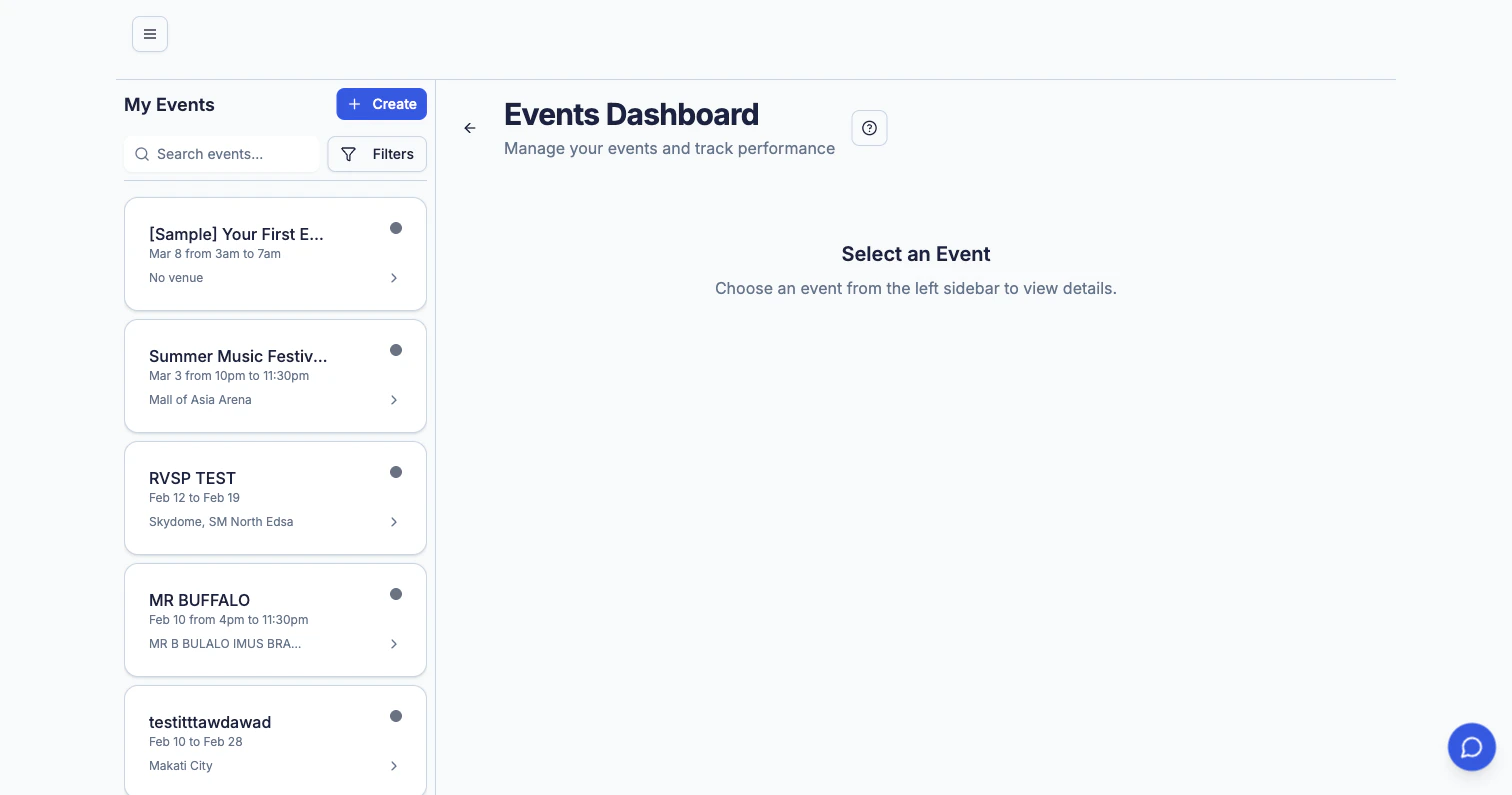 All your events in one view. The event list includes:
* **Status indicators** — color-coded badges for Draft, Published, Live, Completed, Cancelled, and Archived
* **Search and filters** — find events by name, status, date range, or category
* **Sorting** — by date, name, or ticket sales
* **Quick actions** for each event:
* **Edit** — jump to event settings
* **Duplicate** — clone an event with all its settings as a starting point
* **Preview** — see how it looks to attendees
* **Pause sales** — temporarily stop ticket sales without cancelling
* **Archive** — move completed events out of your active list
***
## Event Details & Settings
All your events in one view. The event list includes:
* **Status indicators** — color-coded badges for Draft, Published, Live, Completed, Cancelled, and Archived
* **Search and filters** — find events by name, status, date range, or category
* **Sorting** — by date, name, or ticket sales
* **Quick actions** for each event:
* **Edit** — jump to event settings
* **Duplicate** — clone an event with all its settings as a starting point
* **Preview** — see how it looks to attendees
* **Pause sales** — temporarily stop ticket sales without cancelling
* **Archive** — move completed events out of your active list
***
## Event Details & Settings
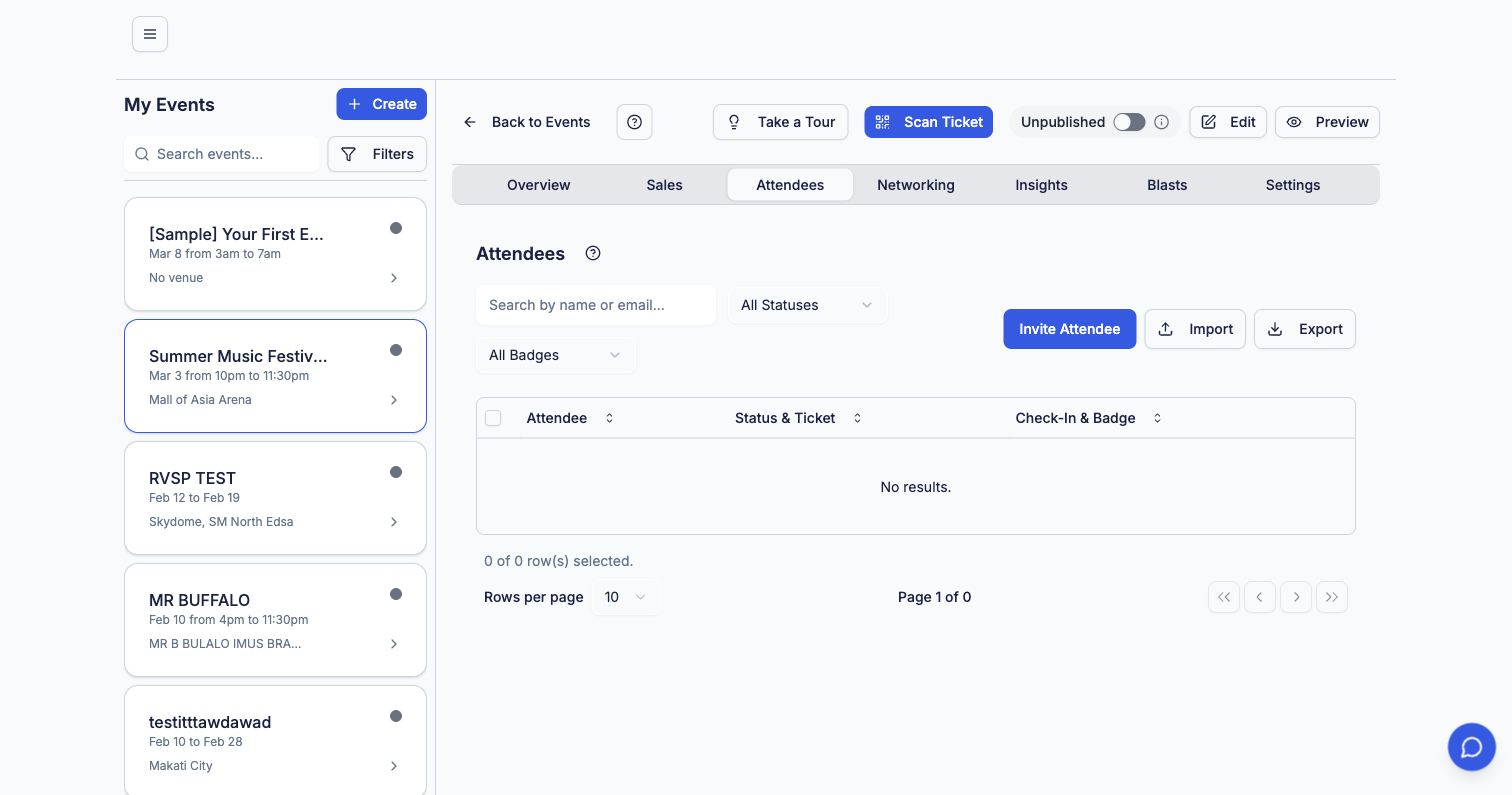
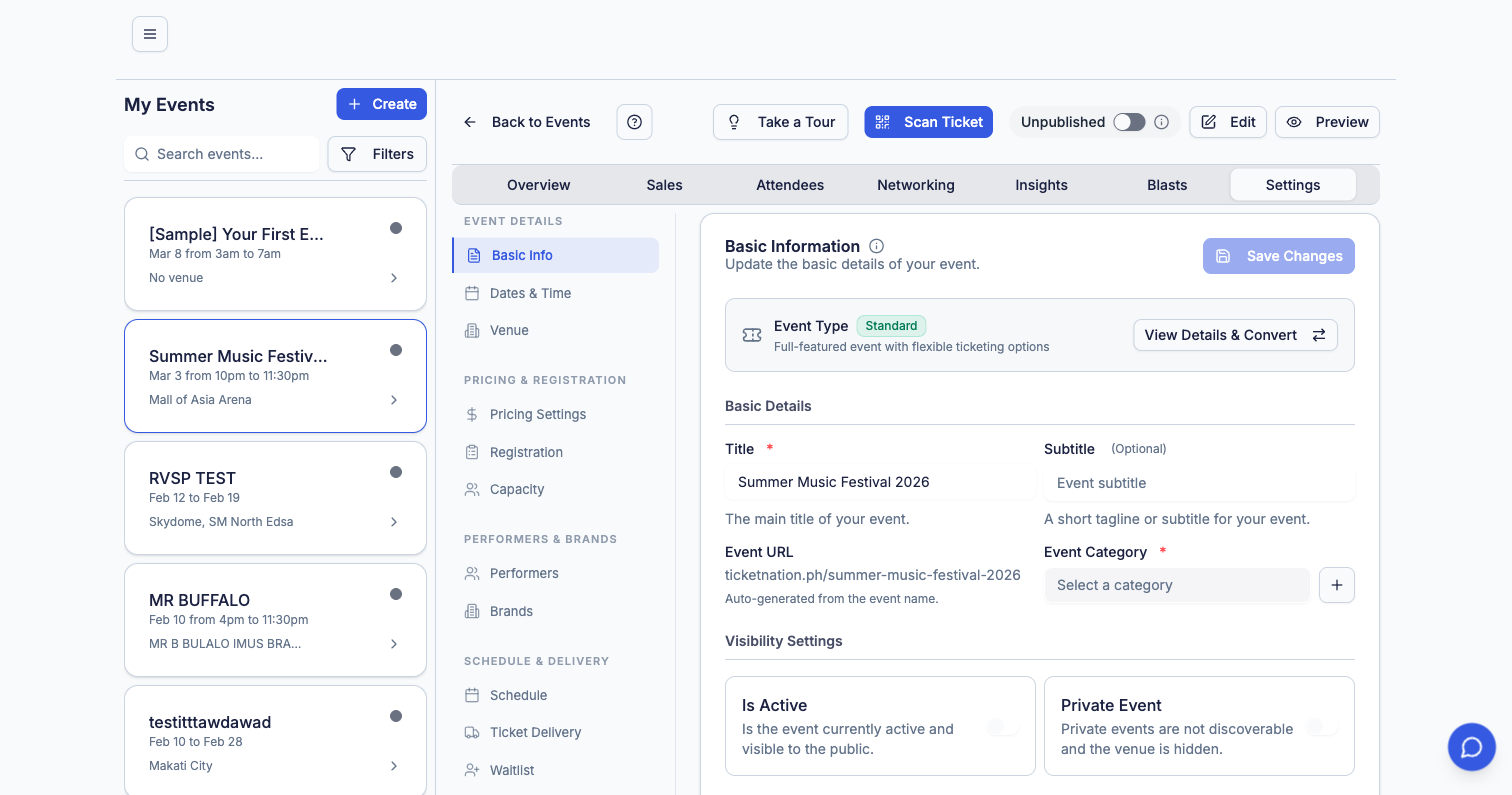 Once an event is created, the detail page gives you access to everything through organized tabs:
| Tab | What You'll Find |
| -------------- | ----------------------------------------------------------------------------------------------- |
| **Overview** | Summary stats — tickets sold, revenue, attendee count, and quick-action buttons |
| **Sales** | Detailed sales data, ticket breakdown by tier, and revenue charts |
| **Attendees** | Full attendee list with check-in status, contact info, and export options |
| **Networking** | Attendee networking features and community engagement tools |
| **Insights** | Analytics on traffic sources, conversion rates, and audience demographics |
| **Blasts** | Send email campaigns to your attendees directly from the event page |
| **Settings** | All event configuration — basic info, dates, venue, pricing, schedule, delivery, and visibility |
Once an event is created, the detail page gives you access to everything through organized tabs:
| Tab | What You'll Find |
| -------------- | ----------------------------------------------------------------------------------------------- |
| **Overview** | Summary stats — tickets sold, revenue, attendee count, and quick-action buttons |
| **Sales** | Detailed sales data, ticket breakdown by tier, and revenue charts |
| **Attendees** | Full attendee list with check-in status, contact info, and export options |
| **Networking** | Attendee networking features and community engagement tools |
| **Insights** | Analytics on traffic sources, conversion rates, and audience demographics |
| **Blasts** | Send email campaigns to your attendees directly from the event page |
| **Settings** | All event configuration — basic info, dates, venue, pricing, schedule, delivery, and visibility |
 ### Settings Sidebar
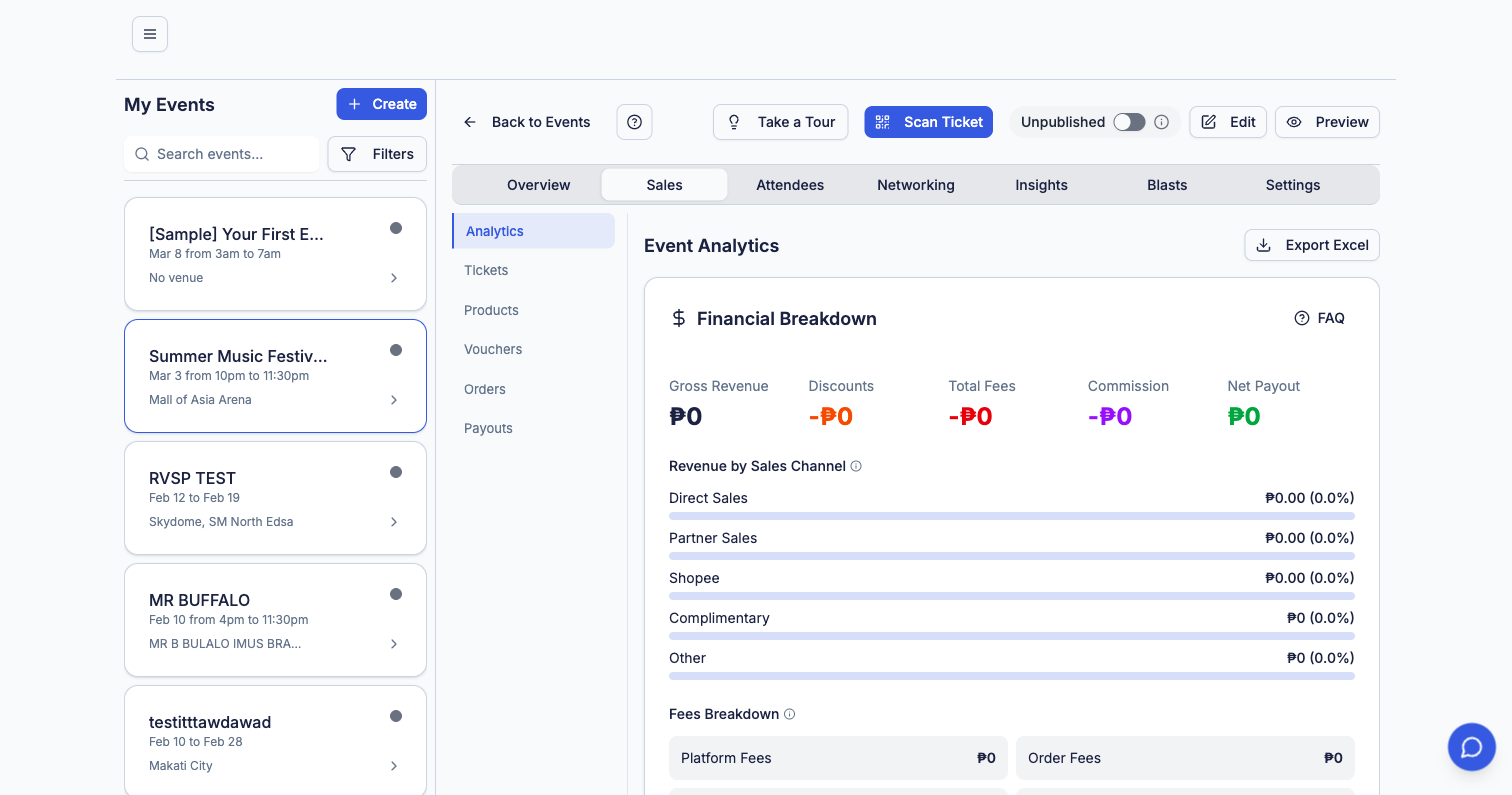
The Settings tab has its own navigation for granular control:
* **Basic Info** — name, description, category, and URL
* **Dates & Time** — event schedule and timezone
* **Venue** — location details and map
* **Pricing Settings** — commission and fee configuration
* **Registration** — custom registration form fields
* **Capacity** — maximum attendee limits per tier and overall
* **Performers** — manage artist and speaker lineup
* **Brands** — sponsor and partner logos
* **Schedule** — multi-session agenda and timetable
* **Ticket Delivery** — QR code, e-ticket, and will-call options
* **Waitlist** — enable and manage waitlist when tickets sell out
***
## Archiving Events
Once an event is completed, you can **archive** it to keep your event list clean and focused on active work.
Archived events are not deleted — they're moved out of your active view but remain fully accessible for reporting, analytics, and historical reference.
**What archiving does:**
* Removes the event from your main event list
* Preserves all data — sales, attendees, orders, and analytics
* Archived events can be **unarchived** at any time
* Useful for keeping your dashboard organized when managing many events
To archive an event, go to the event list and select **Archive** from the quick actions menu, or find it in the event's settings.
***
## Tips for Organizers
Create your event early as a draft. You can refine details and preview before publishing.
Create time-limited early bird tiers to drive initial ticket sales and build momentum.
Events with artist or speaker profiles get more visibility on the discovery page.
Use the built-in email blast feature to notify past attendees about your new events.
### Settings Sidebar
The Settings tab has its own navigation for granular control:
* **Basic Info** — name, description, category, and URL
* **Dates & Time** — event schedule and timezone
* **Venue** — location details and map
* **Pricing Settings** — commission and fee configuration
* **Registration** — custom registration form fields
* **Capacity** — maximum attendee limits per tier and overall
* **Performers** — manage artist and speaker lineup
* **Brands** — sponsor and partner logos
* **Schedule** — multi-session agenda and timetable
* **Ticket Delivery** — QR code, e-ticket, and will-call options
* **Waitlist** — enable and manage waitlist when tickets sell out
***
## Archiving Events
Once an event is completed, you can **archive** it to keep your event list clean and focused on active work.
Archived events are not deleted — they're moved out of your active view but remain fully accessible for reporting, analytics, and historical reference.
**What archiving does:**
* Removes the event from your main event list
* Preserves all data — sales, attendees, orders, and analytics
* Archived events can be **unarchived** at any time
* Useful for keeping your dashboard organized when managing many events
To archive an event, go to the event list and select **Archive** from the quick actions menu, or find it in the event's settings.
***
## Tips for Organizers
Create your event early as a draft. You can refine details and preview before publishing.
Create time-limited early bird tiers to drive initial ticket sales and build momentum.
Events with artist or speaker profiles get more visibility on the discovery page.
Use the built-in email blast feature to notify past attendees about your new events.